
Using GoldPriceOneMobile on iOS?
Take a look at the manual!
Pretty detailed documentation for the iOS version of our gold price info app.
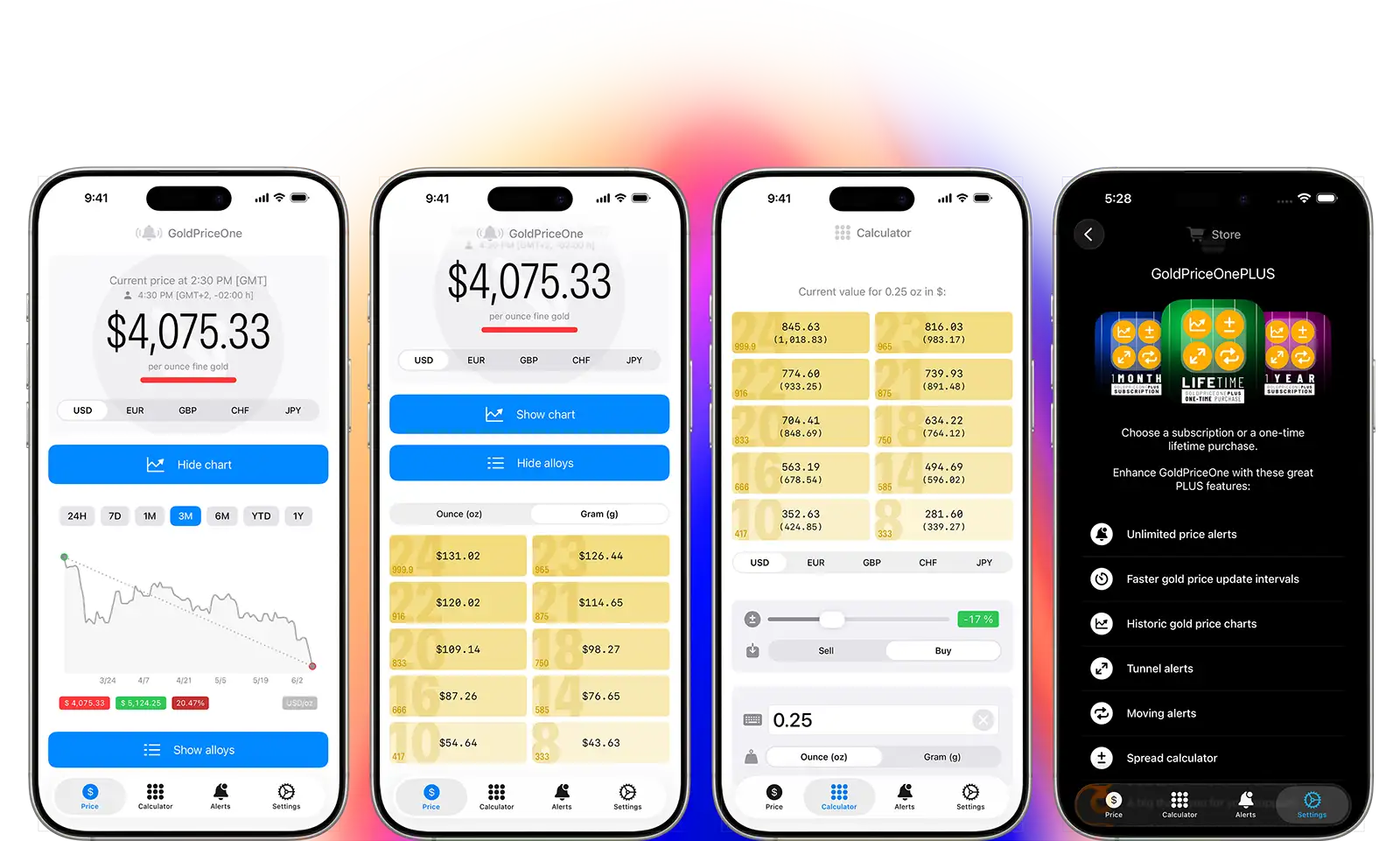
GoldPriceOneMobile How to use the iOS app.
1 - Getting started (Installation and system requirements)
Chapter 1 getting started
System requirements and installation for and of GoldPriceOneMobile
System requirements
GoldPriceOneMobile will run on any iPhone or iPad that is supported by at least iOS 18. If you are using iOS 26 be sure you updated to at least version 26.3 to avoid OS specific problems. On iPads it will run in compatibility mode, iPadOS system requirements are the same as iOS.
A working internet connection is mandatory to receive gold price updates, alerts and charts.
Installing on iOS
You can install GoldPriceOneMobile through the Apple App Store only. The application icon will show up somewhere on one of your home screen(s). To start the app tap the icon and allow GoldPriceOneMobile to use notifications and background app refresh.


2 - Setup GoldPriceOneMobile
Chapter 2 Settings + informations

One screen for all GoldPriceOneMobile in-app settings.
Settings done within and outside of GoldPriceOneMobile
The settings screen of GoldPriceOneMobile can be opened by tapping onto the settings icon in the lower right corner. On narrower displays the lower right icon will show three dots to show more toolbar items. However, there is only one adjustment in GoldPriceOneMobile that can be made within the app. Two settings are made outside of GoldPriceOneMobile.
Settings outside of the app
To completely setup GoldPriceOneMobile you need to allow notifications and background app refresh. Those are set within the iOS Settings App › Apps › GoldPriceOne and can be set or reset at any time.
The app will ask you to setup (allow) those permissions upon it's first start to work properly. While the notification permission is needed to send alerts using notification center, the background app refresh permission allows the app to update gold price information when sent to background.
Settings within the app
The settings screen has six buttons split up in three sections: Update interval, GoldPriceOne PLUS, Rate, Legal informations and About.
Update Interval
This setting defines how often the app automatically contacts the API-server to update the gold price. It's default setting is 30 minutes but it can be set to longe intervals (60 minutes, 2 hours, 4 hours) or manual.
When set to manual the app does not update any informations automatically. This includes, beside the gold price information, the data needed for the charts and it no longer sends any alerts. You need to update the app manually by dragging the screen from top down.
As a subscriber to GoldPriceOne PLUS you can set significantly shorter update intervals like 15 or 5 minutes.
Upgrade to PLUS
To upgrade GoldPriceOneMobile to PLUS, just tap on the button and select your preferred subscription (monthly/yearly) or the one-time purchase. Once purchased or subscribed the button changes to PLUS activated.
Rate on App Store
If you like the app and find it useful we appreciate your rating and reviewing of GoldPriceOneMobile. A tap to this button takes you directly to the Apple App Store.
Legal Informations
As expected the upper button will take you to our website informing you about our privacy policy. While the lower button will take you to the Apple website showing the Standard End User License Agreement (EULA).
About GoldPriceOne
Tapping this button takes you to the app information screen, showing you what version of the app you are running, whether you GoldPriceOne PLUS subscription or purchase is activated or not, and you'll find a link to this website (you already found).
3 - Gold Price View
Chapter 3 using the gold price view
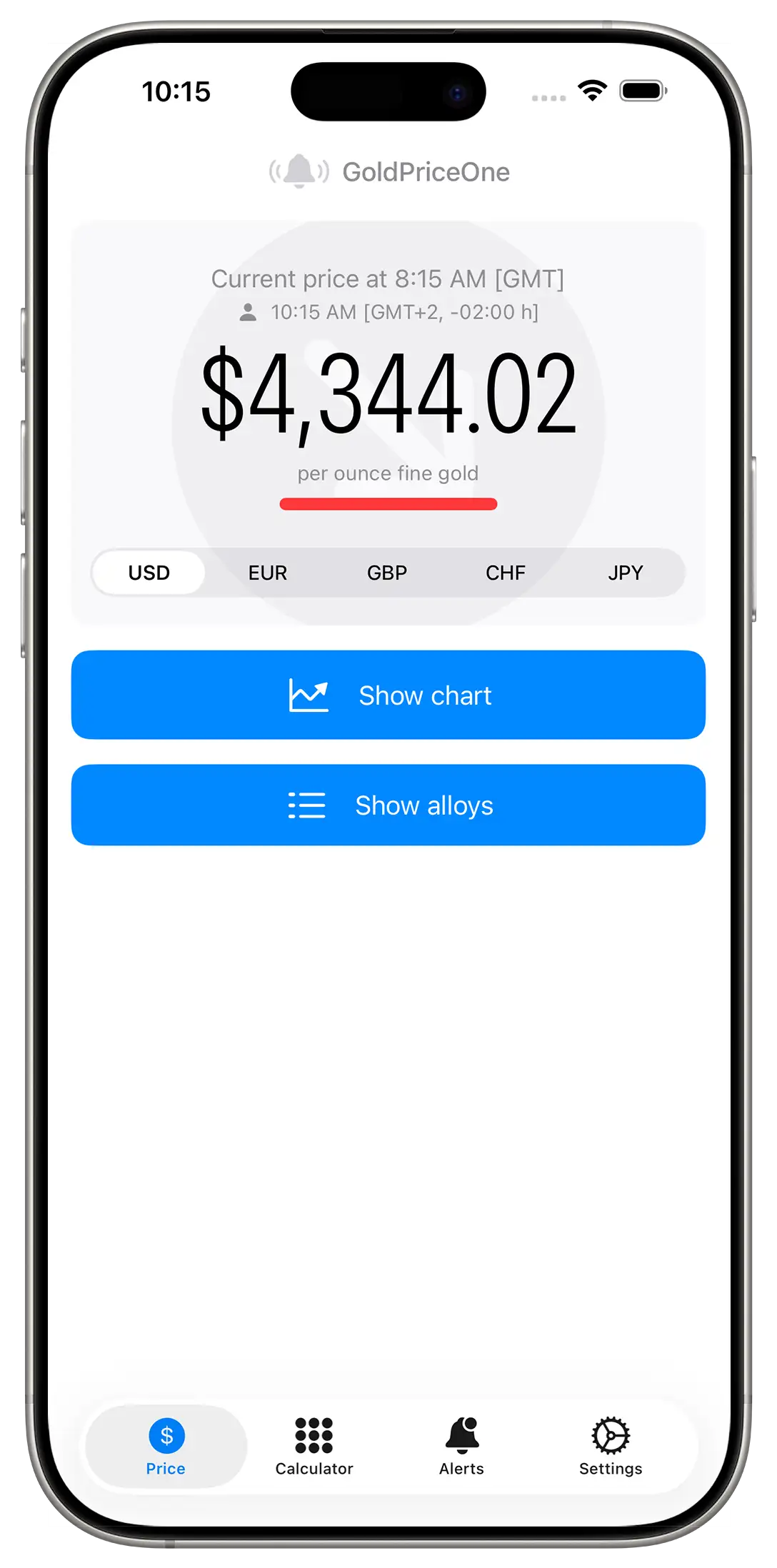
GoldPriceOne has clean and distraction free main window.
Starting and using the GoldPriceOne iOS app
Once started the app will fetch the current spot market gold price automatically form our API-server. This will usually be the price in US Dollars, as it's the standard currency used by the spot market. When you change the currency the app will save it to it's own settings. It also checks if you are a PLUS user to activate the features.
The app will always start in gold price view, because it's its main view. The main view itself is split into three sections.
On top the current price for one ounce of gold will be shown. Below that there is the currency selector. The currency selector is followed by the charts view button and the alloys overview button. Both views are usually collapsed on app start.
The GoldPriceOne app connects to our API-server at startup and whenever the price needs to be updated automatically or manually. It also connects to Apples store server to check whether GoldPriceOne PLUS is activated or not.
Bottom buttons (toolbar)
At the bottom of the main view there are four icons named 'Price', 'Calculator', 'Alerts' ans 'Settings'. The 'Calculator' opens the gold assets calculator while the 'bell icon' button takes you to the alerts manager. The 'Price' button takes you (back) to the main screen of the app. Finally 'settings' opens the app settings. On narrower displays three dots are shown instead of the settings button. Tapping the dots will open the extended menu.
Exploring the main view it's more than just the price
Current price
This section show the current gold price per troy ounce of fine gold (999.9/24 carat). The price is the London spot market price.
Above the price are two lines of text. The upper line shows the information about when the last price update was made in London time (GMT). The second line shows your local time, timezone and time difference to London time. When markets are closed it is indicated by a small 'padlock' icon.
There are also two visual indicators that show the change in gold price since the last update. A bar and a arrow symbol behind the current price. The lower bar is either gray, red or green showing that the price has remained the same, fallen or risen. The arrow in the background of the price view indicates the same information in a different way. Up means risen, down means fallen and the arrow pointing to the left means nothing happend at all since the last price update.
Currency selector
The currency selector is – more or less - integrated into the price view. It can be used to change the currency for the current price displayed. It also changes the displayed currency in the alloys overview and affects the currency in which alerts are set and which currency is used in the assets and spread calculator.
The currency switch let's you choose between US Dollars, Euros, Pound Sterling, Swiss Francs and Japanese Yen. Changing the currency refreshes the gold price if necessary.
Charts view
To take a look on the development of the price of gold just tap the show charts button. The charts view offers actual and historical gold price data for various time periods along with informations about highest and lowest price, price deviation and an appropriate trend line.
The charts view feature is only available for GoldPriceOne PLUS subscribers and buyers. The button is deactivated in the free version of the app.
Alloys overview
To open the gold alloys overview simply click onto the button. The list of alloys provides an overview of the most common gold alloys used for jewelry or coins, for example. The prices are shown in the currency you chose. You can switch from ounces to grams and vice versa.
4 - Gold Price Chart View
Chapter 4 Gold price charts
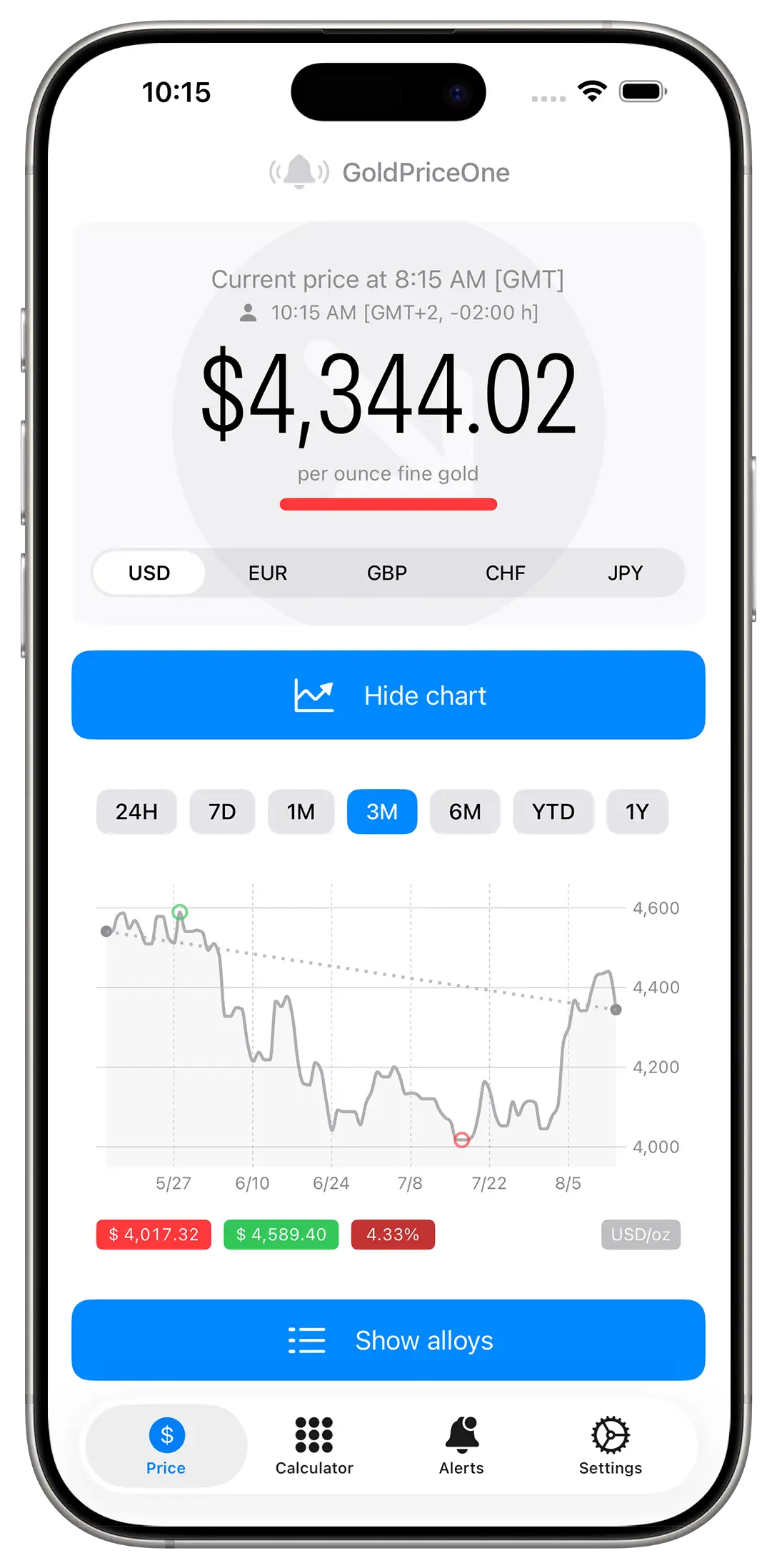
Take a look back in time. Historical gold price charts.
Beautiful charts gold price visualized
Knowing the current spot price of gold is important if you buy, sell, hold or trade with physical gold. Getting some insights on how the price of gold developed over time is - at least - interesting. GoldPriceOneMobile allows you to take a closer look back in time with the gold price charts.
Time period
The chart view offers you several time periods to choose from. You can switch between 24 hours, 7 days, 1 month, 3 months, 6 months, 1 year and year-to-date.
On switching the time period the chart graphics changes, showing you the gold prices of the selected time period. Additionally a gold price trend line for the chosen range is shown, so are the highest and lowest price, as well as the price deviation.
The chart itself
The chart shows you actual as well as the historical gold price data as - you might guess it - a graphic. There are four indicators on the chart line. Two little gray dots for the first value on the left, the current value on the far right, both connected by a dashed trend line. Then there is a red circle for the lowest price and a green circle representing the highest price of the selected time frame.
Gold trend line
The dashed line connecting the two gray dots is the gold price trend line. It shows you the direction of the gold price within the selected time period up to the current price.
Highest/Lowest price
Below the chart graphic you see the lowest (red box) an the highest (green box) price of the chosen time period. The minimum and maximum values are also displayed on the chart as a pulsating red and green circle respectively.
Gold price deviation
Next to the highest price you'll find the gold price deviation. It shows the percentage price deviation of the selected time period. The color of the box also indicates if the gold price has fallen (dark red), risen (dark green) or didn't move (gray).
Charts view interactivity
Since version 1.3 of GoldPriceOneMobile the chart view has become interactive. Tapping onto the chart will show the gold price of the selected date or time in an overlay. Additionally you can shake your iPhone to hide the chart grid and the y-axis label. Shake it again to restore the display.
Markets closed underlay
If the London market is closed an underlay with a padlock icon will be shown. Usually this will happen on Saturdays, Sundays and bank holidays in the United Kingdom. Nevertheless the app will update the chart data continuously.
A little side note: We are providing the historical data via our own API collecting gold prices continuously. As soon as we have collected enough data we'll add more - in this case older - gold price data, i.e. 2 years.
5 - Gold Price Alloys
Chapter 5 Gold alloys overview
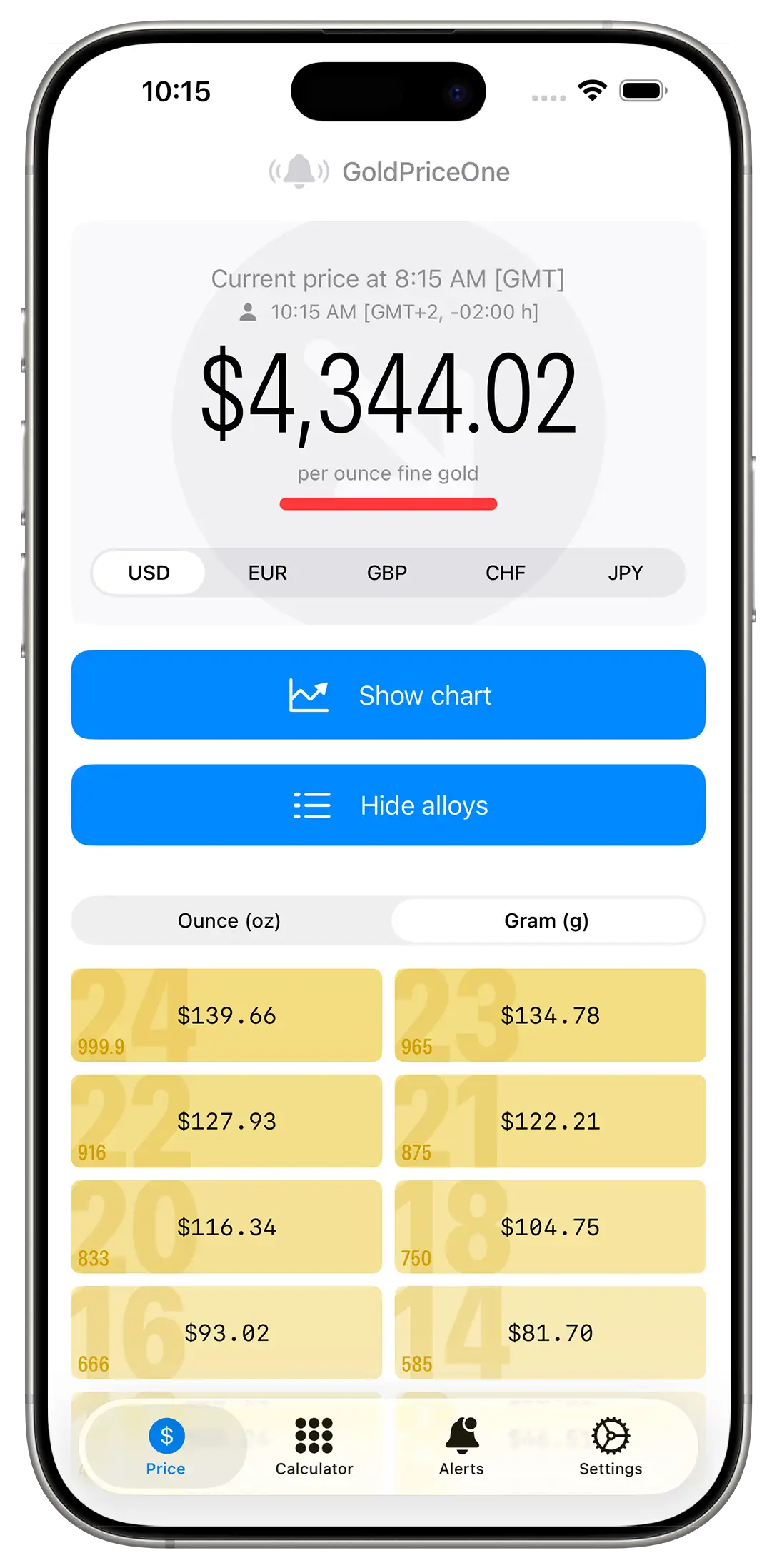
Get a quick overview on the value of a gram or an ounce of fine gold and it's alloys.
Gold alloys values at a glance
When buying or selling gold as coins or jewelry, a look at the most common gold alloys is quite practical. Especially if you have inherited gold jewelry or coins, for example, and are considering selling them.
Weight selector
The weight selector allows you to choose the unit the value of the listed gold alloys is shown. You can switch between ounces (actually it's troy ounces) and grams - two of the most common weight units for gold.
This way you can always see how much an ounce of 8 carat gold or a gram of 18 carat gold is worth at any given moment. The currency displayed is the same as the one the price of an ounce of fine gold is shown in. You can change the currency at any time using the currency switch.
Karats and prices
The alloys list shows you various karats (purities) and how much one gram or one ounce of this alloy is worth right now in the selected currency and weight unit.
The gold alloys are listed from the most valuable (24 karat, 999.9 purity) to the least valuable (8 karat, 333 purity). Gold bars are usually 24 Kt (fine gold) while common jewelry normally consist of 14 Kt or 18 Kt gold. Gold coins, on the other hand, are made of 23 Kt or 22 Kt alloys. Depending on their origin and age.
Exact values
If you want to go into more detail, with specific weights and alloys, then the gold price calculator or – assets calculator as a professional would call it – is the tool of choice, described in the next chapter.
6 - Gold Price Calculator
Chapter 6 assets and spread calculator
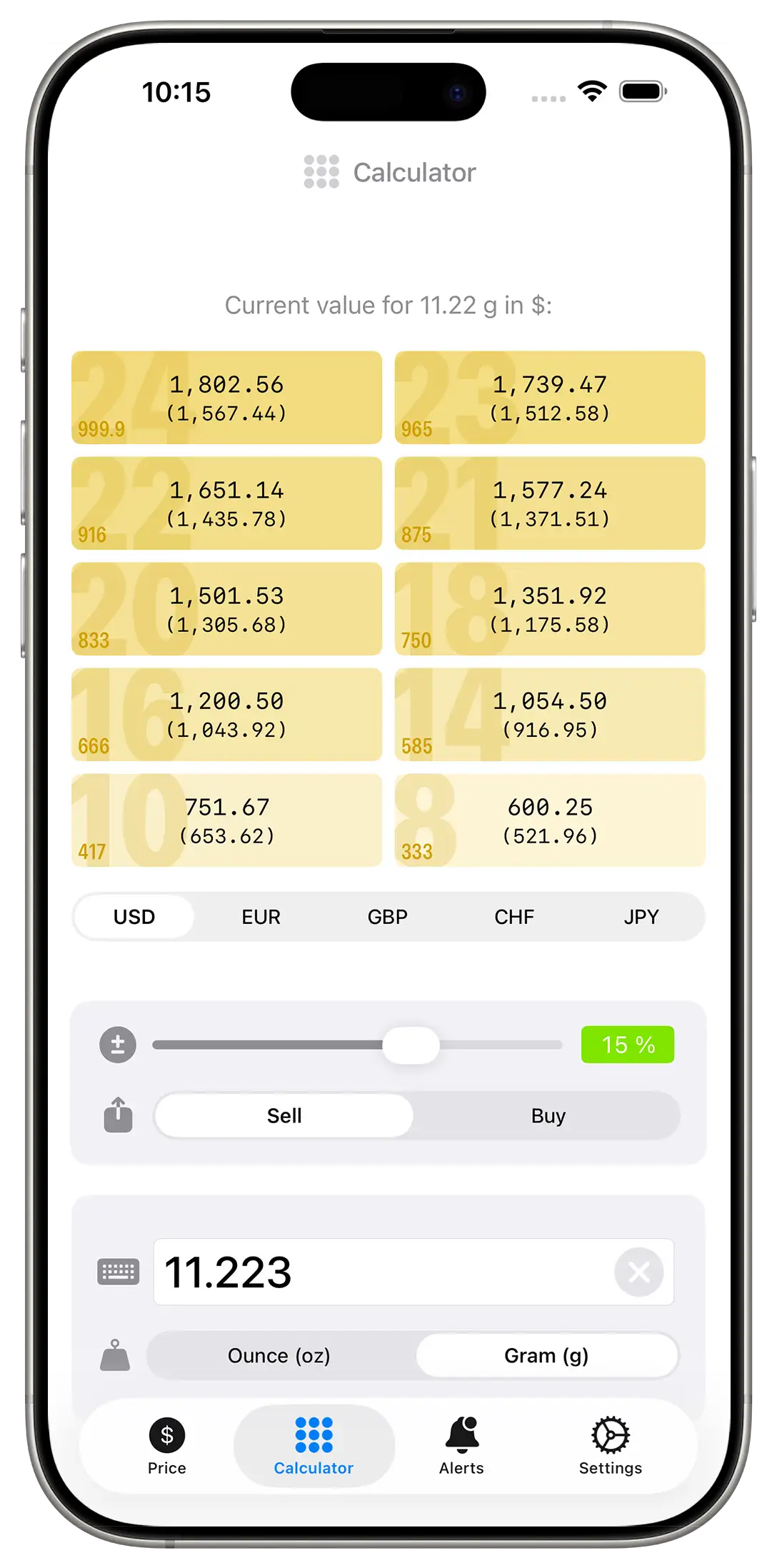
The assets calculator allows you to quickly check the value of your physical gold and jewelry.
Calculate the value of your gold assets precisely
With the GoldPriceOne assets calculator it is possible to get a quick overview of the value of different alloys for any weight. Simply enter the weight, select the unit and currency and the values for different alloys are displayed directly.
This function is useful if, for example, physical gold is to be bought, sold or valued as jewelry. The currency (USD, EUR, GPB, CHF, JPY) and the weight unit (ounce/gram) can be adjusted at any time.
Enter weight, done
To get the value of your precious metal jewelry, you simply enter the weight and press done. The current value is displayed in the gold alloys list above immediately. Changing the weight unit re-calculates the displayed values to ounces or grams, but it does not change the amount you entered. Switching from one currency to another also re-calculates the values shown in the alloys list above.
Discounts and surcharges calculate the spread
As a GoldPriceOne PLUS user the gold assets calculator offers a discount/surcharge calculator - a.k.a. spread calculator. It's pretty easy to use: Simply fill in the amount of gold you like to buy or sell and slide the slider to the left for discounts or to the right for surcharges.
Whilst you are using the slider the gold assets values are re-calculated immediately. The upper line is the price based on the spread you set, while the lower line still shows the current price of this alloy.
The percentage value shown on the right hand of the slider changes it's color from turquoise green (really a very good price) to green (very good price) to yellowish green (good price) to yellow (okay-ish price) to orange (bad price) to finally red (really bad price). If the percentage value is 0 % the background color is gray.
Below the slider you can set whether you are going to buy or sell gold. Changing this setting changes the direction of the colors that indicate a good or a bad price. In other words, this for example means, while a discount of -30 % when buying is shown in green (indicating a very good price), the same -30 % is shown in orange when selling, because it's a bad price for you.
Tapping the percentage value
If you tap the percentage value once it rises the spread by 10 %, tapping twice decreases the percentage value by -10 %. Tap and hold resets the percentage to 0 % (no discount/surcharge color changes to gray). The prices shown for each alloy's value will update immediately.
Identifying the gold alloy purity
Most pieces of jewelry have a hallmark that indicates the type of gold alloy used. It's either karats (i.e. 18 Kt) or the purity in parts per thousands (i.e. 750 or 0750). Just be aware that it's not common for both carats and purity parts per thousand to be listed as hallmarks. This usually indicates counterfeits quickly.
Coins usually have no hallmarks and are not made from pure gold. Coins are made from alloys like 23 kt or 22 kt but the stamped weight (i.e. 1/2 ounce) is the proportion of fine gold – not the actual weight of the coin.
7 - Gold Price Alerts Management
Chapter 7 Gold price alerts
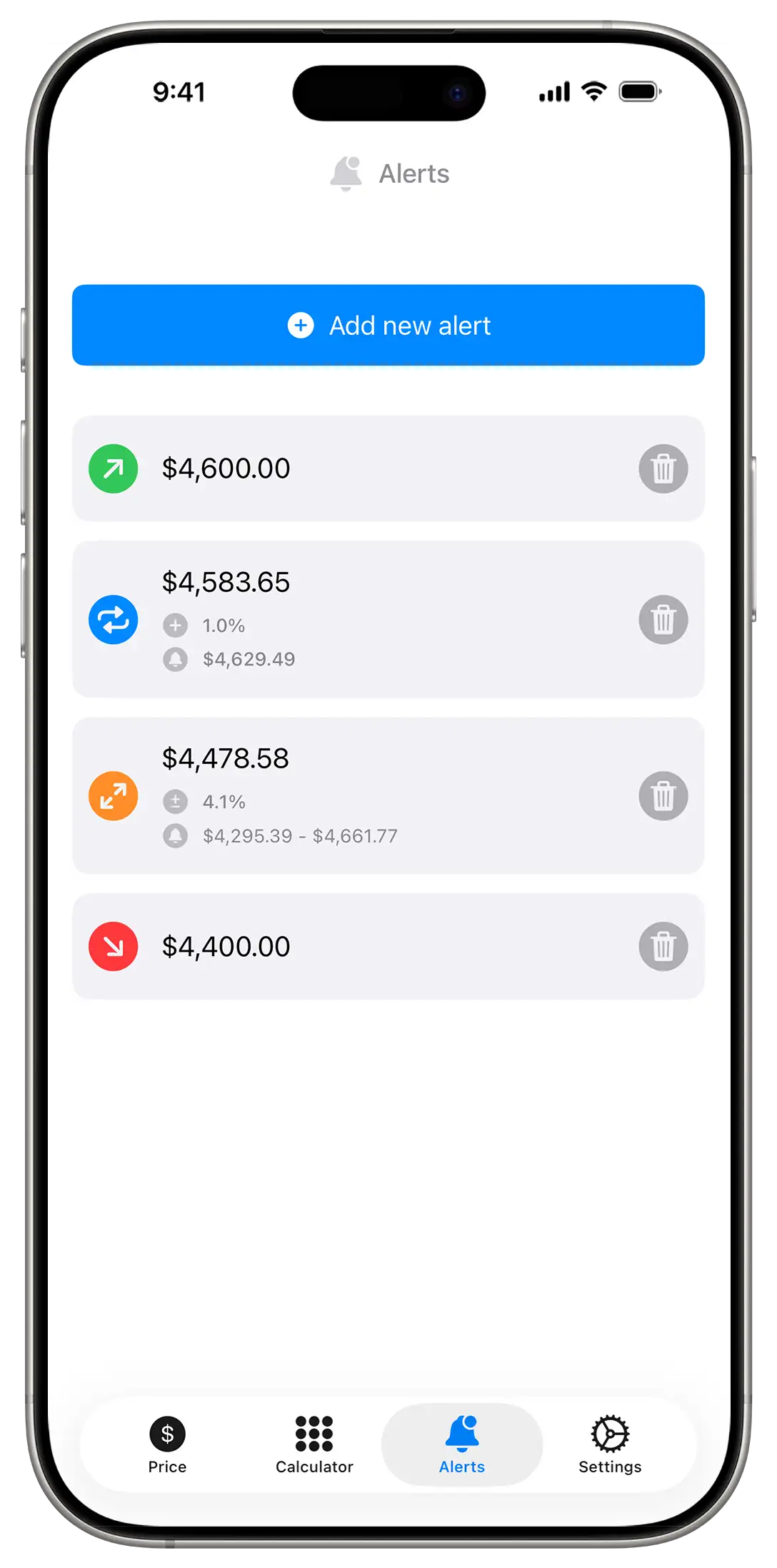
GoldPriceOne has an easy to use alerts management.
Managing your gold price alerts
GoldPriceOneMobile offers an easy to use gold price alerts management. Alerts are set with only a few taps and you can choose from different types of alerts. The free version has a limit of five alerts and two alert types.
As a subscriber to GoldPriceOne PLUS you have four types of alerts and an unlimited number of alerts.
Alerts are displayed via iOS notification center and behave as defined in the system settings.
Gold price alerts list
Once the alerts view is selected it shows you a list of all set gold price alerts (if any). Already triggered alerts disappear from the list automatically. It is not possible to set two identical alarms, e.g., with the same price limit and of the same type in the same currency - just because it wouldn't make sense.
Setting an alert
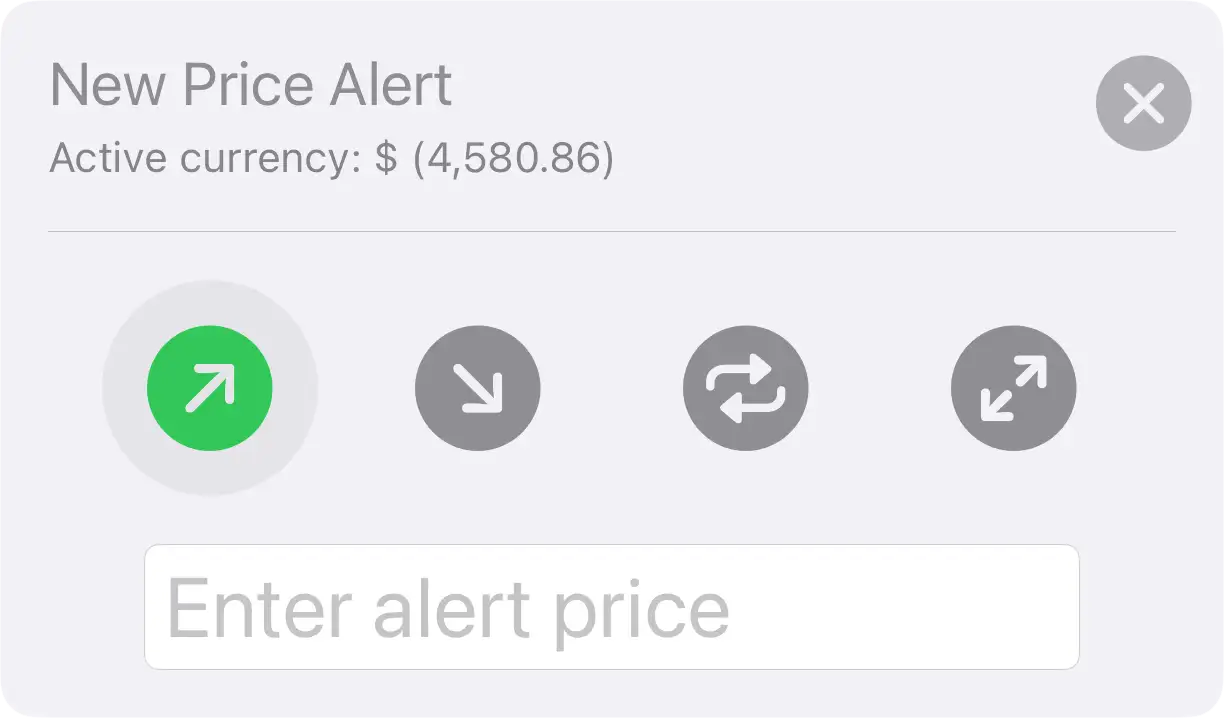
To set an alert simply tap the add new alert button. A pane appears that allows you to set a new alert. Select the type of alert you'ld like to set and enter the alert price either by entering the value (above/below alerts) or using the slider (moving/tunnel alerts).
Above alerts
The above alert represents the take profit signal. If the gold price exceeds the given value, an alert is triggered.
Below alerts
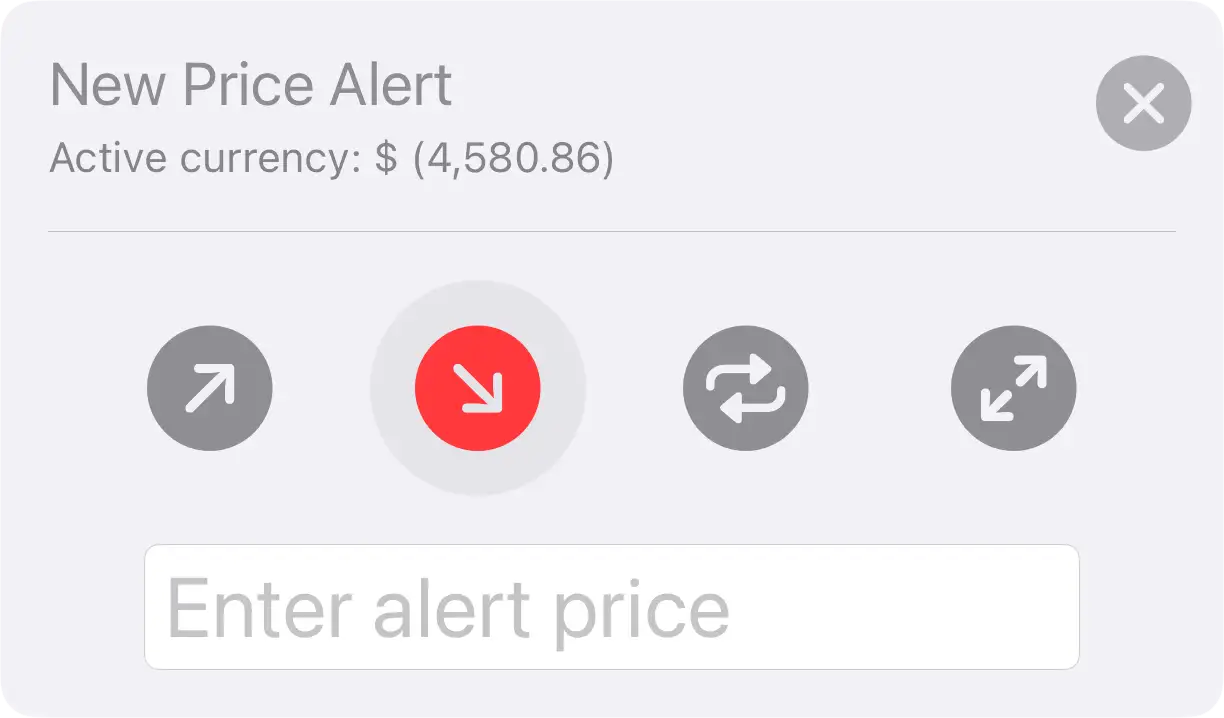
This type of alert is also known as stop loss signal. In case the gold price drops below the set value an alert will be send.
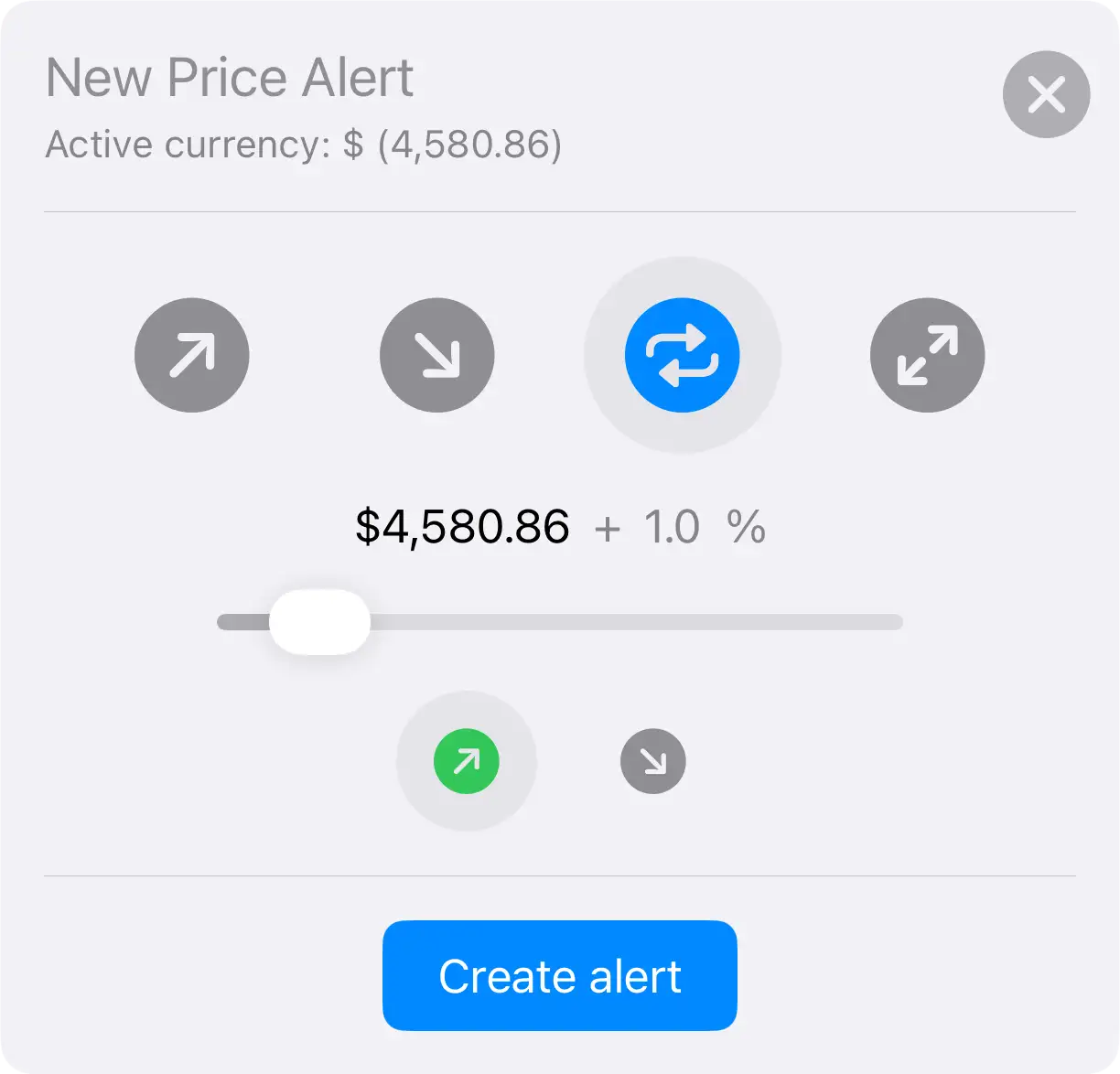
Moving alerts
A moving alarm is triggered when the price reaches a threshold, after which the alarm is automatically renewed with the same specifications - direction and percentage but the new price.
Moving alerts are not deleted automatically.
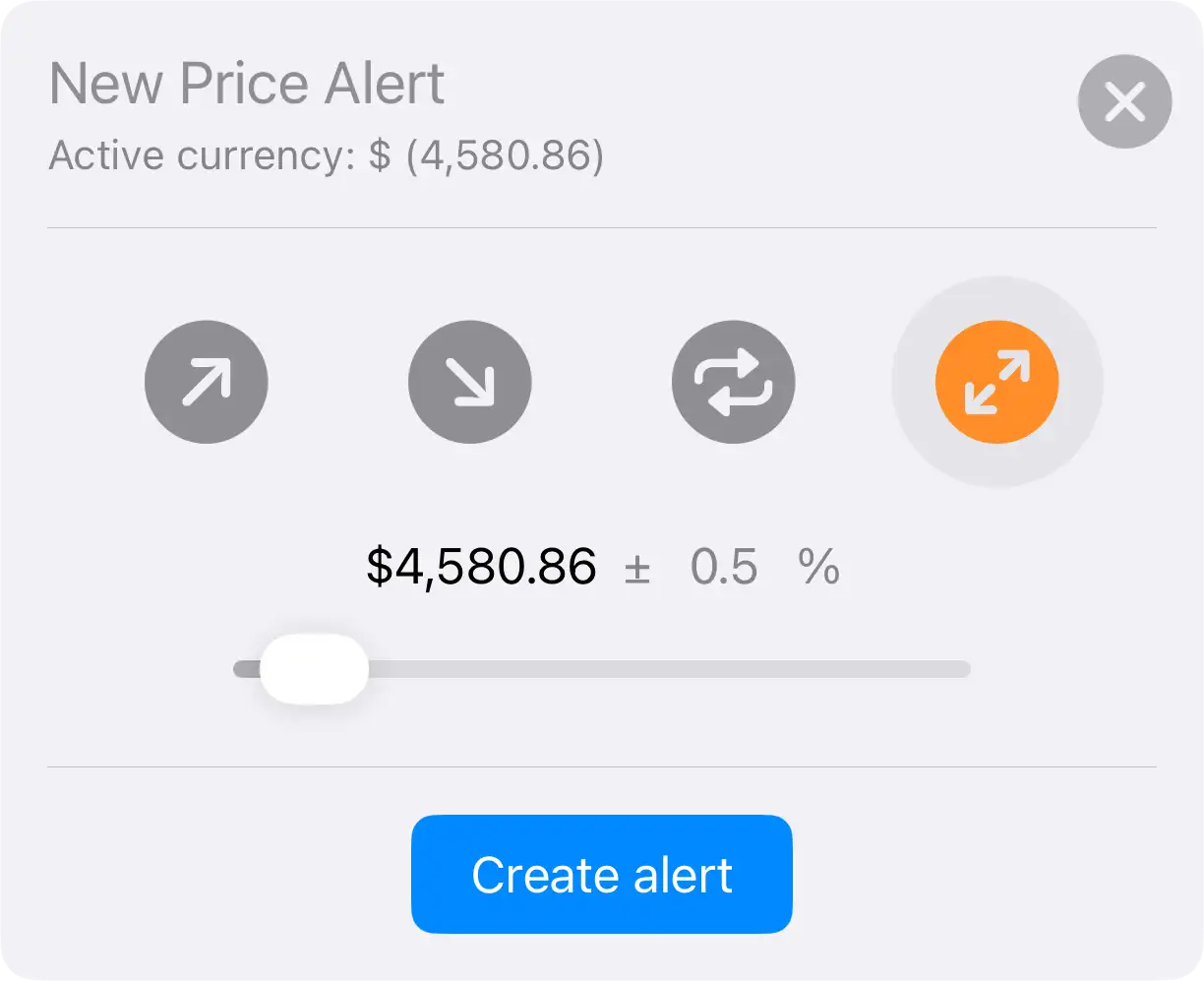
Tunnel alerts
This alert is triggered when the gold price exceeds or falls below a specified percentage corridor of the current gold price.
Tunnel alerts are one-off alerts and are automatically removed from the list once they were triggered.
Deleting an alert manually
An alert is deleted by tapping the trash can icon next to it. It's deleted immediately, the app won't ask you if you are sure you really like to delete the alert. It simply deletes it from the list.
8 - GoldPriceOne Widget
Chapter 8 the home screen widget
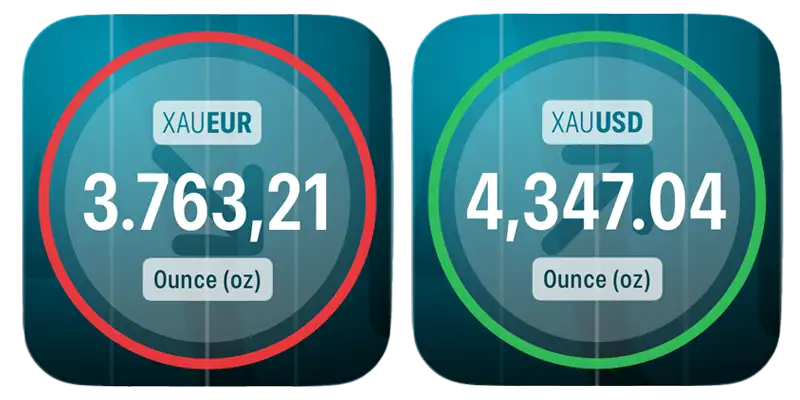
GoldPriceOne Widget. The current gold price always in sight.
Gold price informations on your home screen
GoldPriceOneMobile has a little helper, that lives on your home screen if you like. It simply shows you the current price of gold in your chosen currency. But if you take a closer look there's some more informations being shown.
It also shows you the trend of the gold price since it's last update by an arrow pointing up/down/to the right and a ring colored in green/red/gray. The chosen currency is shown above the price in XAU (for gold) and the currency's abbreviation (USD, EUR, GBP, CHF JPY) format.
Of course the widget follows the appearance rules you set in system settings (light, dark, tinted).
9 - Upgrading to GoldPriceOne PLUS
Chapter 9 upgrading to PLUS tier
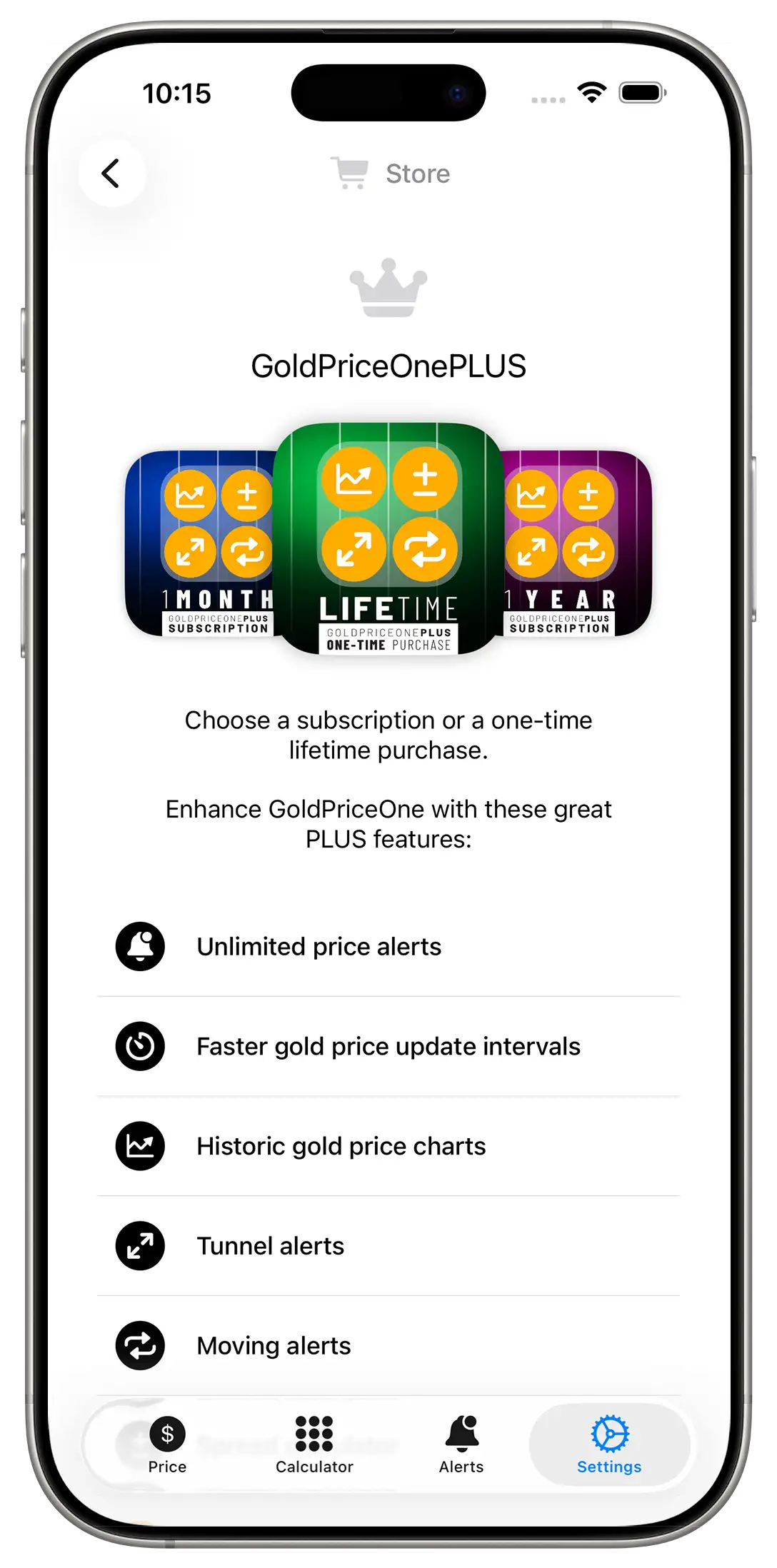
GoldPriceOne PLUS. A lot of useful features. One-time purchase or subscription.
Upgrading the app to GoldPriceOne PLUS
If you like to upgrade to GoldPriceOne PLUS simply use the in-app purchase or in-app subscription within the settings. The PLUS tier is available as a subscription with monthly and annual billing or as an one-time purchase (lifetime license).
Upgrading GoldPriceOneMobile gives you access to a lot of useful features for a pretty low subscription price of USD 0.99 (monthly billing) or USD 9.99 (yearly billing). If you prefer to buy the PLUS tier instead of subscribing, the lifetime license our buy once, use for ever option. The price is USD 19.99.
- Additional types of alerts (moving, tunnel)
- Gold price charts for 24 hours, 7 days, 1 month, 3 and 6 months, year-to-date
- Unlimited alarms
- Shorter refresh intervals (5 and 15 minutes)
- Spread (discount/surcharge) calculator
- All future feature enhancements
- Annual subscription gives you an additional 20 % discount
- Developers love for supporting our work
Not install GoldPriceOneMobile yet?
You can install GoldPriceOneMobile directly from the Apple App Store only. The safe and secure way!
Please keep in mind those are US prices. Prices in your country may vary due to tax regulations and exchange rates.